How to Cast Anime Salt to TV with Chromecast
A practical phone and browser guide to Google Cast, screen mirroring, connection checks, and playback limits.
To cast Anime Salt to TV, start playback on a phone or computer and send it to a Chromecast or a television with Google Cast built in. A Cast button inside the video player is usually the cleanest option because the receiver can play the stream while the phone acts as a remote.
If the player has no Cast button, Android screen mirroring or Chrome tab casting may be available. These mirror more of the source device, so notifications, battery use, and unsupported video formats can affect playback. TV APK installation is a separate route, not a requirement for casting.
The shortest route to cast Anime Salt to TV
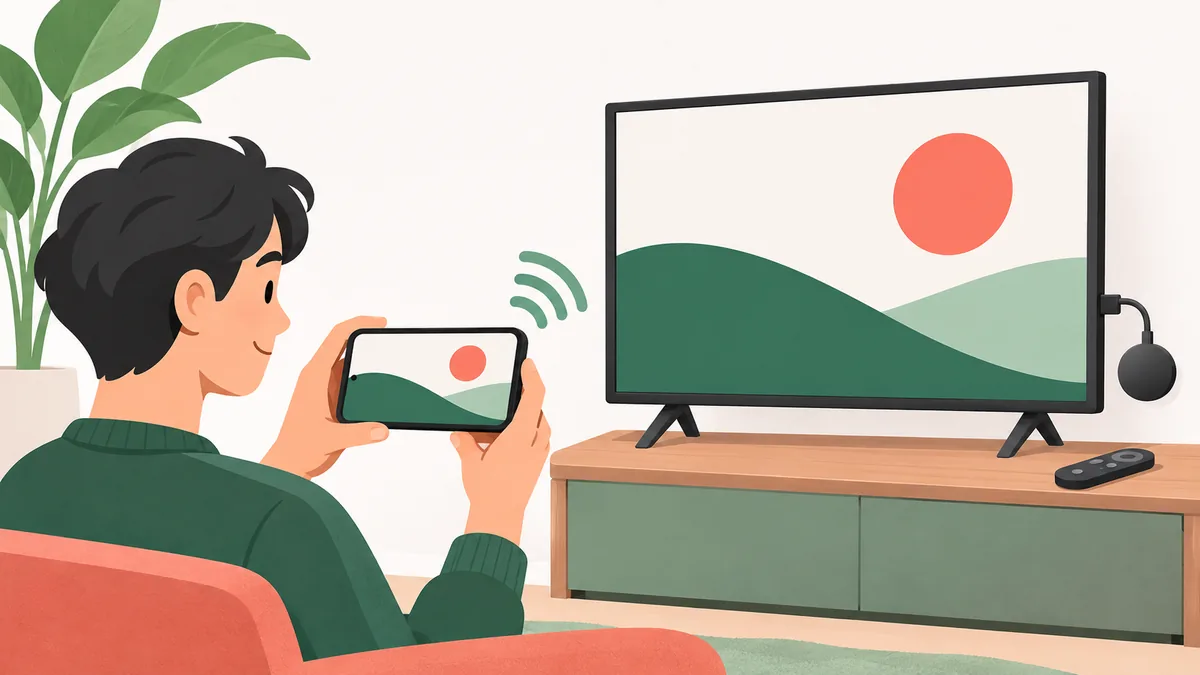
Put the phone or computer and the Chromecast on the same Wi-Fi network. Open the video on the source device, start playback, and look for the Cast icon in the player. Choose the television or Chromecast name and wait for the TV to take over. Keep the phone nearby as a playback remote until the connection is stable.
If the player has no Cast control, try Android Quick Settings for Cast, Screen Cast, or Smart View. On a computer, check Chrome’s Cast menu. A listed receiver proves discovery only, not that a player or stream supports casting, so test a short clip first.
Start with a player-level Cast button. Use screen mirroring as a fallback, not as evidence that every stream is compatible.
Cast, mirror, or install an app on the TV?
“Casting” can mean a player-level session or screen mirroring. A player sends a supported video session to the receiver; mirroring reproduces the phone or computer display and may also show notifications. The routes have different compatibility and privacy limits.
Installing an app on Android TV or Fire TV runs it locally and uses the remote. It requires a compatible device, install permission, and a source you can assess. Casting avoids a TV sideload but still depends on player and receiver support.
| Method | What the TV receives | Best first check |
|---|---|---|
| Player Cast | A supported video session | Look for the Cast icon inside playback controls. |
| Android screen mirroring | The phone’s displayed screen | Confirm Android and the receiver offer compatible screen casting. |
| Chrome tab casting | A browser tab or screen | Check Chrome’s Cast menu and keep the source tab open. |
| TV APK installation | An app running on the TV | Check Android-based compatibility and app-source evidence first. |
Do not install an APK just to test casting. The existing Android TV and Firestick guide covers local TV installation as a separate task.
How to cast from an Android phone
Use these checks in order. Menu wording differs between Pixel, Samsung, Xiaomi, and other Android devices, so follow the closest Cast or screen-sharing control shown by the phone.
- Check the network. Connect the phone and Chromecast or Google Cast TV to the same home Wi-Fi. Guest networks, VPNs, and client isolation can prevent device discovery.
- Test playback locally. Confirm the episode starts on the phone before changing TV settings.
- Try the player control. Tap Cast, select the receiver, and wait for TV playback.
- Mirror if necessary. Use Quick Settings for Cast or Screen Cast, then return to the video.
- Stop sharing. Disconnect from the Cast control or Quick Settings and confirm playback has ended.
Google’s Cast guidance also requires the mobile device and Chromecast to share a Wi-Fi network; a nearby but isolated receiver may not appear.
How to cast a browser tab from Chrome
Chrome tab casting can help when a video plays in a desktop browser but the player has no Cast control. The tab and computer remain in the playback path, and protected or unsupported video may appear blank.
Connect the computer and receiver to the same Wi-Fi, test playback in the tab, then use Chrome’s menu to choose Cast, the receiver, and an available tab or screen source. Keep the computer awake. Use the menu again to stop; do not install unknown extensions or disable browser security to force a stream.
- Keep the source tab open until playback is stable.
- Close unrelated tabs and pause large downloads if playback stutters.
- Do not expose passwords, messages, or private tabs while mirroring the full screen.
Troubleshooting: Chromecast not found or video stays black
Change one variable at a time. Separate receiver discovery from player, stream, and network problems; reinstalling is rarely the best first diagnostic step.
Google notes that some videos may not play on Chromecast. A successful device connection is not a guarantee that each source, format, or stream is supported.
Picture quality, subtitles, battery, and privacy
Player casting may let the phone handle other tasks, depending on the app. Mirroring keeps the phone involved, uses more battery, and may show notifications. Use Do Not Disturb and avoid displaying private information when mirroring.
Quality depends on the source, Wi-Fi, receiver, and screen. If playback freezes, stabilize the network or lower resolution if available. Subtitles can be a separate track or drawn by the phone’s player, so reconnect and select them again if they disappear.
- Use a private Wi-Fi network you control.
- Keep account and notification content out of a mirrored display.
- Stop sharing from the source device when finished.
- Do not install unknown Cast extensions or disable security warnings to force a stream.
When casting is better than installing on a TV
Casting is a useful first test when a title already plays on the phone and a compatible receiver is available. It avoids adding an APK to the TV and keeps search on the phone; a short clip checks whether that player and stream cooperate.
A local TV app may suit compatible Android TV or Fire TV after checking its source, permissions, and remote controls. Samsung or LG televisions without Android cannot install an Android APK directly. If casting fails, check the receiver’s official help or use a legitimate service that supports the device instead of downloading a random mirror APK. App identity is separate from Cast compatibility.
For an installable TV device, compare the source and remote workflow. For a Chromecast receiver, test the player Cast route first and keep screen mirroring as a limited fallback.
Anime Salt Chromecast FAQ
The reliable way to test Anime Salt casting
Start with the same Wi-Fi check, confirm the video plays on the phone, and try the player’s own Cast control. Move to screen mirroring or Chrome only when the source and receiver offer that option. If playback fails, isolate discovery from format support and stop before installing unverified software or weakening device security.
Related device guides
- Android TV and Firestick setup — For installing and navigating an app locally on an Android-based television.
- Anime Salt playback troubleshooting — For source, buffering, cache, and playback checks on the phone.
- Anime Salt app identity review — For separating a familiar app name from publisher and APK evidence.
Official reference
- Google Chromecast Help: Cast from the YouTube app and YouTube.com — Official Google instructions confirm the same-Wi-Fi requirement, Cast control flow, disconnect action, and that some videos may not play.
Last checked: November 4, 2026