How to Turn On Subtitles in Anime Salt: Language, Sync, and Missing Caption Fixes
A practical 2026 guide for enabling captions, choosing subtitle language, and fixing Anime Salt episodes where subtitles do not appear.

Table of Contents
If you searched for subtitles en Anime Salt or how to turn on subtitles in Anime Salt, you probably opened an episode, saw the video start, and then realized the dialogue was not readable. That is frustrating, especially when the episode is in Japanese audio and you expected English, Spanish, Portuguese, or another subtitle track.
Anime Salt subtitle controls can vary by version and by streaming source, so the exact icon may appear as CC, Subtitles, Language, Audio, or a small settings gear inside the player. The good news is that the troubleshooting path is consistent: check the player track first, switch the source if the track is missing, then adjust Android caption and Live Caption settings only when the in-app track is unavailable or unreadable.
This guide focuses on practical fixes rather than generic advice. It explains the right order to test subtitle tracks, when a missing language is a source issue, how to handle subtitle delay, and what to do on Android TV or Firestick where remote control navigation can hide the subtitle menu.
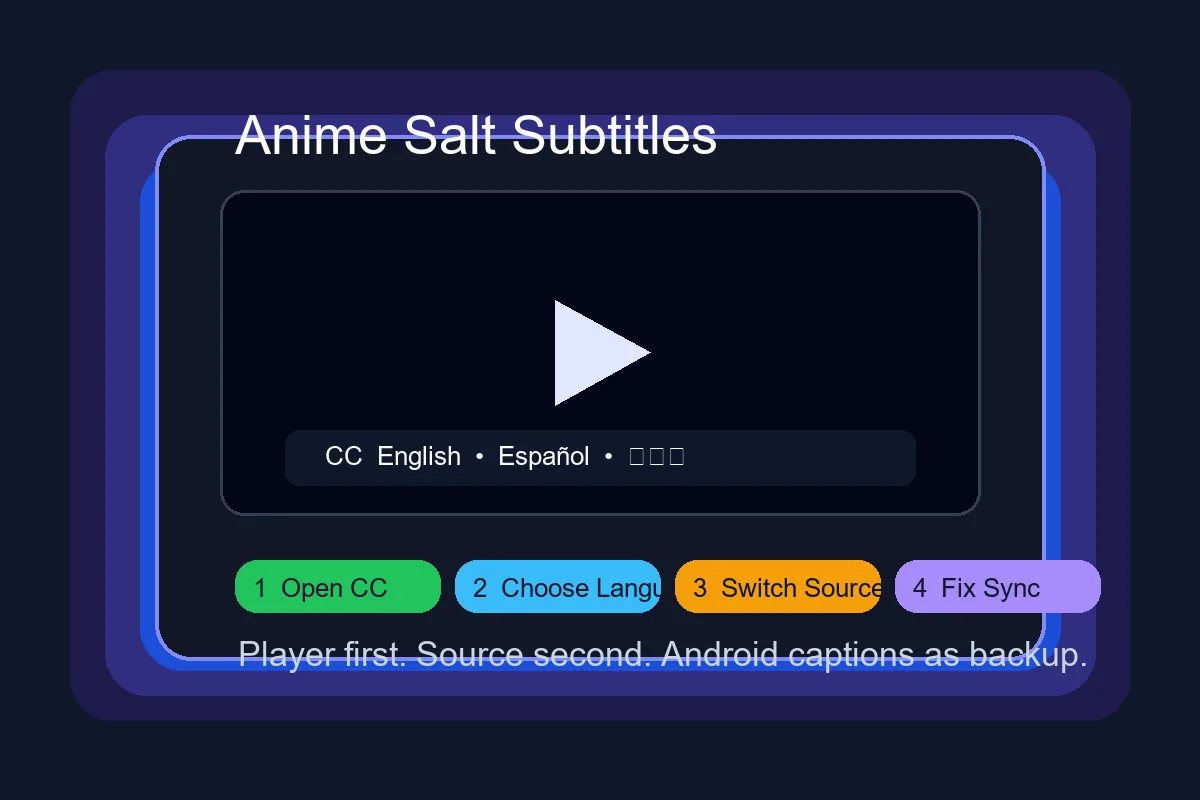
Quick Answer: How Do You Turn On Subtitles in Anime Salt?
Open an episode, tap the video once, then look for CC, Subtitles, Language, or the settings gear. Choose the subtitle language you want and wait a few seconds for the track to load. If no subtitle option appears, try another stream source or another episode because not every source carries the same caption file.
If subtitles appear but are too small, delayed, or invisible against the video, change the in-player style when available. If the app has no style controls, use Android caption preferences or Live Caption as a backup for spoken audio. Live Caption is useful, but it is not the same as a translated anime subtitle track.
Best first move
Do not reinstall the APK first. Reinstalling rarely fixes a missing subtitle track. Switch the subtitle language and streaming source before clearing cache or changing system settings.
Subtitle Diagnostic Order: What to Try First
Use this sequence when subtitles are missing, delayed, or stuck in the wrong language. It separates episode-source problems from app, cache, and Android caption settings.
| Step | What it proves | When to stop |
|---|---|---|
| Check CC or language inside the player | Confirms whether the current source exposes subtitle tracks. | Stop if your language appears and loads correctly. |
| Switch source/server for the same episode | Tests whether the subtitle file is missing only on one host. | Stop if another source has the correct subtitles. |
| Try another episode from the same series | Shows whether the issue is episode-specific. | Stop if older episodes work and the newest episode likely lacks captions. |
| Clear app cache, not data first | Removes temporary player state without deleting saved settings. | Stop if captions return after reopening the episode. |
| Adjust Android captions or Live Caption | Improves readability or provides rough speech captions when no track exists. | Use this only as a fallback, not as a replacement for translated subtitles. |
Most Anime Salt subtitle problems are source-specific. Switch the source before reinstalling or deleting app data.
How to Turn On Subtitles in Anime Salt
Use this order because it isolates whether the problem is a disabled track, a missing language, a source issue, or a device setting.
-
Open a specific episode, not just the anime detail page
Subtitle tracks load from the video player. Start the episode and wait until playback begins before looking for the CC or language control.
-
Tap the video player once
On phones, tap the center of the video to reveal controls. On Android TV or Firestick, press OK or the center button on your remote.
-
Open CC, Subtitles, Language, or Settings
The label can change by Anime Salt version. If you see a gear icon, open it and check for a subtitle or caption submenu.
-
Choose the subtitle language
Select English, Spanish, Portuguese, Japanese, or another available language. If your language is not listed, that episode source probably does not provide it.
-
Wait and test another source
Some tracks take several seconds to load. If nothing appears after 10-15 seconds, switch to another server/source for the same episode.
-
Restart playback after switching tracks
If the text appears late or remains stuck on the old language, pause the video, seek back ten seconds, or close and reopen the episode.
Subtitle Language Settings: What Each Option Means
Anime apps often mix subtitle, audio, and system caption labels. Use the table below to avoid changing the wrong setting.
| Setting | What it changes | When to use it |
|---|---|---|
| Subtitle / CC track | The written text displayed over the anime episode | Use this for translated dialogue and signs. This is the main Anime Salt setting. |
| Audio language | The spoken dub or original audio track | Use this only when you want dubbed audio. It may not add written subtitles. |
| Player source / server | The video host that supplies the stream and subtitle file | Use this when one source has no subtitles, broken timing, or the wrong language. |
| Android captions | System-level caption appearance for supported media | Use this when captions are visible but too small, low contrast, or hard to read. |
| Live Caption | Android-generated captions for speech on supported devices | Use as a backup when no subtitle file exists, but do not expect perfect anime translation. |
Fix Anime Salt Subtitles Not Showing
Work through these fixes in order. The early steps are low risk and usually solve the issue without deleting data.
Fix:
Try another episode and then another source. If the button appears elsewhere, the first source did not expose a subtitle track. On TV devices, press OK or Down to reveal the full player toolbar.
Fix:
Pause for a few seconds, seek back, and switch between subtitle languages. If that fails, clear Anime Salt cache from Android settings and reopen the episode.
Fix:
Manually select the preferred track inside the player and restart playback. If the app remembers the wrong choice, clear app cache rather than app data first.
Fix:
Switch source, reduce video quality once, or restart the stream. Delay is usually caused by a mismatched subtitle file on that source, not by your phone.
Fix:
Look for player style controls. If none exist, use Android caption size and style settings to increase contrast and text size where supported.
Fix:
Use the remote to open the player toolbar, test another source, and confirm the app is not zoomed or cropped by TV display settings. See the Android TV guide for sideload and remote tips.
Subtitle Sync, Font Size, and Readability Tips
Subtitle timing problems usually come from the stream source. If one source has a delayed track, another source for the same episode may have a corrected subtitle file. Reinstalling the APK should be a last step because it does not repair a bad file on the host.
Readability problems are different. If text blends into bright scenes, choose a larger font, a dark outline, or a semi-transparent background when the player allows it. On small phones, landscape mode can also give captions more room and reduce line breaks.
Use source switching before reinstalling
A second source often fixes missing, delayed, or wrong-language captions faster than clearing the whole app.
Avoid auto-translate as your main option
Auto-generated captions can miss names, honorifics, and anime terminology. Use real subtitle tracks when available.
Check episode-specific gaps
If one new episode has no subtitles but older episodes work, the track may not be uploaded yet.
Keep enough storage free
Low storage can make cache and stream data unstable. Leave at least several hundred MB free when streaming.
When to Use Android Captions or Live Caption
Android caption settings can improve the appearance of supported captions, while Live Caption can generate captions from speech on many modern devices. These tools are helpful backups, but they do not replace a proper translated anime subtitle file.
Use system captions when the text exists but is hard to read. Use Live Caption when no in-app subtitle track exists and you only need a rough speech caption. If you need translated subtitles, switch Anime Salt sources or wait for the correct subtitle track instead.
Google explains Android caption controls in its Android caption settings help page .
For generated speech captions, review Google's Live Caption support notes .
Related Anime Salt guides
- Anime subtitles websites for Japanese and English subs - compare licensed services, learning captions, subtitle files, and mirror safety
- Install Anime Salt APK on Android - useful if the player controls do not appear after installation
- Anime Salt on Android TV and Firestick - covers remote navigation and TV display issues
- Anime Salt safe link guide - helps avoid clone pages that may ship broken APKs
- Anime Salt Premium APK safety guide - avoid modified APK files that can break player or subtitle behavior.
- Anime downloader APK offline guide - check subtitles before saving episodes offline
Frequently Asked Questions
Bottom Line
The fastest way to fix Anime Salt subtitles is to start inside the player: enable the subtitle track, choose the language, and switch stream sources before touching installation settings. Most missing-caption problems are source-specific, so a different server often solves them immediately.
For readability, use player style controls or Android caption settings. For missing translated tracks, do not rely on Live Caption as a perfect substitute. It is a fallback for speech, not a curated anime subtitle translation.
Sources and verification notes
- Google Accessibility Help: Android caption settings and caption availability notes.
- Google Android Accessibility Help: Live Caption behavior, device support, and privacy notes.
- SERP review on May 28, 2026: competing subtitle-fix pages commonly cover player settings, source switching, cache, browser/device issues, and caption availability, but none addressed Anime Salt specifically with Android TV context.
Last updated: June 17, 2026