How to Watch Anime in Picture-in-Picture on Android
Test app support, keep subtitles readable, and switch to a practical fallback when the floating player does not appear.

Table of Contents
Searching for anime picture-in-picture on Android usually means you want to keep an episode playing in a small floating window while replying to a message, checking a guide, or browsing another app. The idea is simple, but the result depends on more than the phone's Android version. The app, browser player, video format, device settings, and subtitle implementation can all change what you see.
This guide gives you a repeatable test instead of promising that every anime website or Anime Salt build supports PiP. Start with a non-sensitive episode, play a few seconds, return to the Home screen, and check whether Android keeps a small player visible. If it does not, the most useful next step is to identify whether the app lacks PiP support or whether a permission, gesture, orientation, or subtitle setting is getting in the way.
The same method works for many anime streaming apps and browser players. It also helps you choose a fallback: use a supported browser player, switch to split screen, or stay in the app when a small window would make subtitles too difficult to read. The goal is reliable playback and clear controls, not a forced feature that the player was never designed to provide.
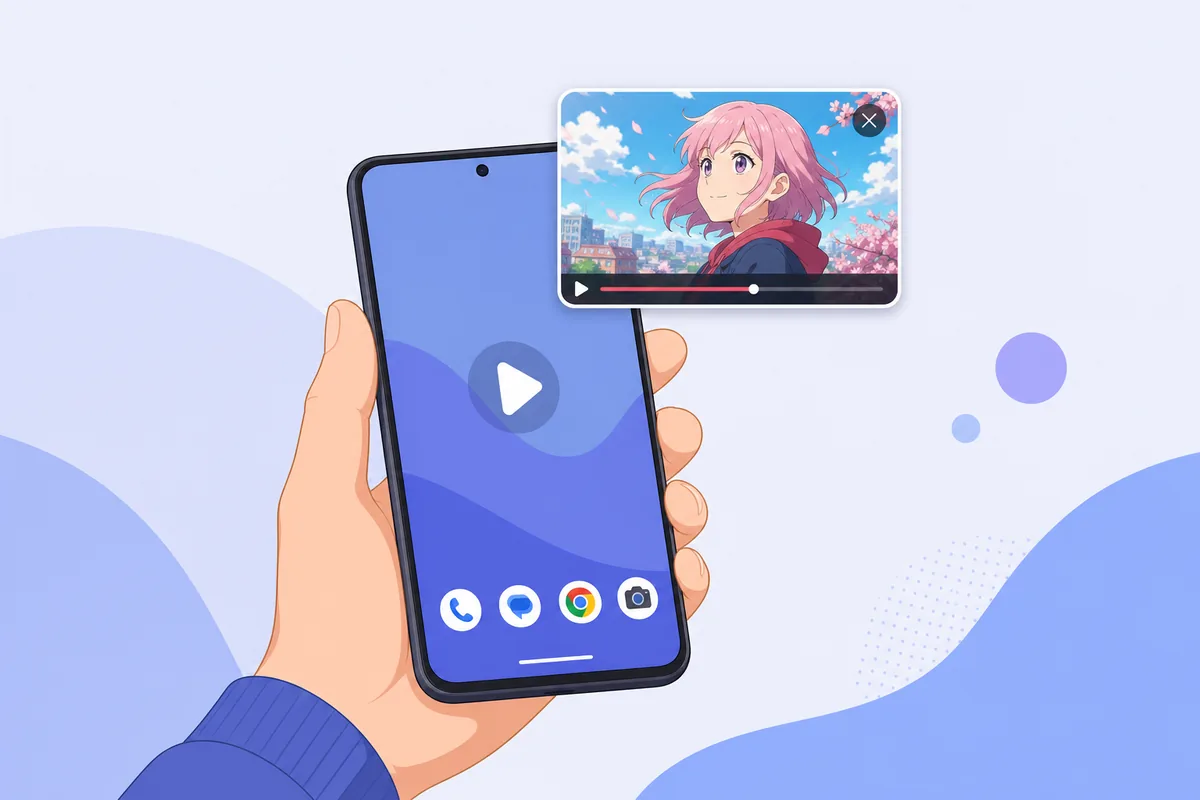
Quick Answer: Can You Watch Anime in Picture-in-Picture on Android?
Often, yes—but only when the Android device and the player cooperate. Android's picture-in-picture feature lets a supported video activity shrink into a movable window. The anime service still has to implement the feature, and some browsers or embedded players may block it. Your device may also expose a permission or special-app-access switch that controls whether the window can appear.
For Anime Salt or any other APK-based player, do not infer support from the download page, a screenshot, or a marketing claim. Test the exact build on the exact device. If the window never appears after a clean Home gesture and the PiP permission is allowed, describe that result as unsupported or unverified rather than repeatedly changing unrelated settings.
PiP is not the same as casting, downloading, or split screen. It keeps one video activity above another task, so it can be convenient for short checks but less comfortable for long episodes with dense subtitles.
Best first test
Play a few seconds, leave the player with the normal Home gesture, and look for a small floating video window. If there is no window, check support and permissions before reinstalling anything.
What Picture-in-Picture Means for Anime Viewing
Picture-in-picture is a system-level viewing mode in which a video activity continues in a small overlay while another app is in the foreground. The window can usually be moved, expanded, minimized, or closed. Android's own documentation describes PiP as something the app must support; the operating system supplies the window behavior but does not turn every video into PiP automatically.
That distinction matters for anime websites. A site may show video in a browser tab, an embedded player, or a full-screen activity. One player can enter PiP while another stays full screen or simply pauses when you leave. A site can also change behavior after an update, when a login state changes, or when a browser blocks a media action.
Use these signals when judging the result:
- A floating window appears immediately after you leave the player: the current player supports PiP on that device.
- Android shows a PiP permission but leaving the player still closes playback: the app may not request PiP or the player may not support it.
- The video continues only in a notification or audio mode: that is background playback, not picture-in-picture.
- The window appears but subtitles disappear: the subtitle layer may not be rendered inside the PiP surface, so test full screen before changing the app source.
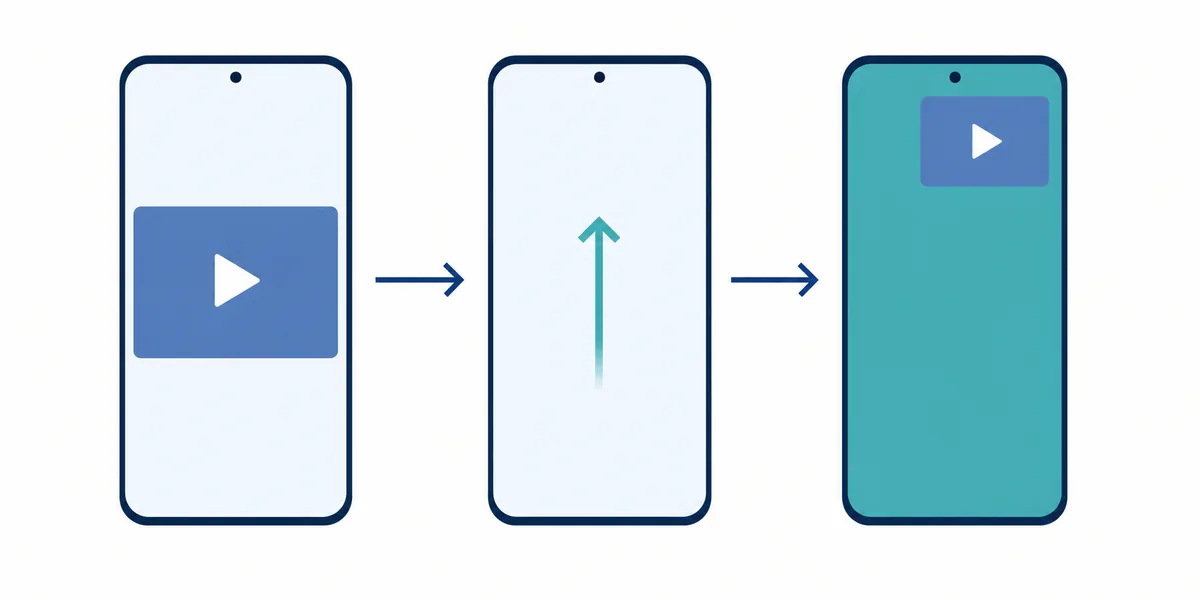
How to Test an Anime App or Website in PiP
Run this test before spending time on APK reinstall steps. It is deliberately small, reversible, and easy to repeat with a different app or browser. Use a stable connection and a short episode segment so you can tell a real PiP result from a loading screen or an audio-only continuation.
Android menu names vary by manufacturer. A Pixel, Samsung, Xiaomi, or Android TV-style device may put the relevant permission in a different location, so treat the labels below as a route to look for rather than a promise of identical wording.
- Open the anime app or browser player and start a video. Wait until the picture and audio are actually playing.
- Open the player controls once and dismiss them again. This confirms that you are testing the player rather than a page preview or poster image.
- Use the device's normal Home gesture or Home button. Do not force-close the app or press Back repeatedly, because those actions may close the video instead of requesting PiP.
- Look for a small movable video window. Drag it to a different corner, expand it briefly, and return it to the small state.
- Open another simple app and observe the result for at least 20 seconds. Record whether video, audio, controls, and subtitles continue together.
App, Browser, or Split Screen: Which Fallback Fits?
A useful fallback depends on whether you need subtitles, easy controls, or uninterrupted playback. Choose the smallest change that solves the problem instead of treating every failed PiP test as an APK problem.
| Option | What it is good for | Main limitation |
|---|---|---|
| Supported app PiP | Short viewing while checking messages, notes, or a guide. | The exact app/player must support PiP; subtitle layers may be reduced. |
| Browser PiP | Testing another player without installing a new APK. | Browser, website, media format, and embedded-player rules vary. |
| Android split screen | Longer viewing when subtitles and touch controls matter. | The video area is smaller and some apps refuse split-screen mode. |
| Full-screen playback | Dense subtitles, action scenes, and the most predictable controls. | You cannot keep another app visible at the same time. |
Subtitles, Audio, and Floating-Window Controls
The most common PiP disappointment is not that playback stops; it is that the small window becomes too cramped for subtitles. Many players render subtitles as a separate overlay or resize them when the video surface changes. Anime fans who rely on small Japanese text, dual-language captions, or detailed signs in the frame should judge readability before using PiP for a full episode.
Start subtitles in the normal player first. Confirm the selected track, font size, contrast, and timing while the video is full screen. Then enter PiP and check whether the same track remains visible. If the track disappears only in the floating window, return to full screen for subtitle-heavy scenes rather than downloading an unknown player or changing sources without evidence.
Practical checks
- Test one scene with dialogue and one scene with on-screen text; a player can preserve dialogue subtitles while losing signs or styling.
- Keep the window large enough to read before moving it over another app. Tiny subtitles are a usability failure even when PiP technically works.
- If rotation closes the window, lock orientation before starting the test and compare the result with a second player.
- Use headphones or lower the other app's audio so an overlapping notification does not make the anime track hard to follow.
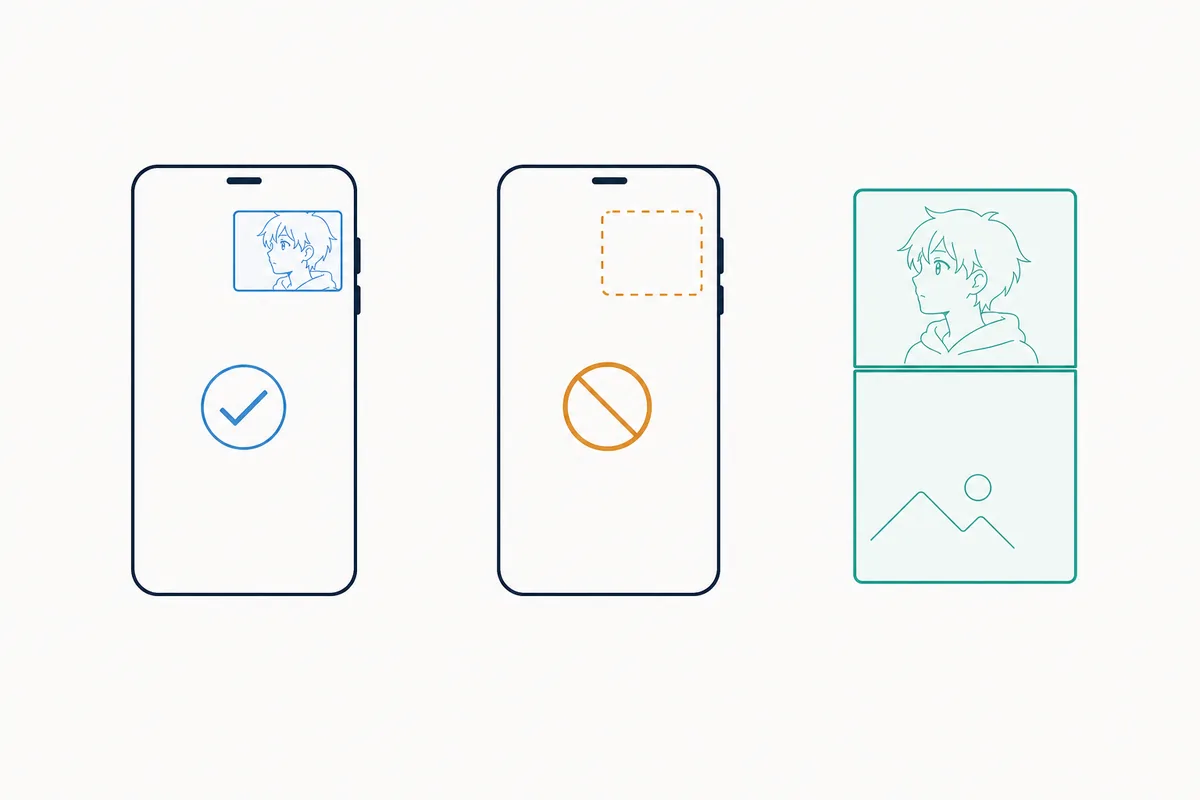
Fixes When PiP Does Not Appear
Work through these checks in order. Stop once you know the limitation is player support; repeated reinstalls cannot repair a feature the current player never exposes.
Safety and Privacy Notes for PiP Testing
Picture-in-picture is a display behavior, not a safety certificate. A floating window does not prove that an APK is official, unchanged, malware-free, or permitted to distribute the video it shows. If you are testing an app installed outside Google Play, verify the package identity, source, permissions, and release information separately from the PiP result.
Keep the test focused. Do not grant unrelated accessibility, notification-reading, device-administrator, or overlay permissions just to force a small video window. If a download page asks for extra access that has no clear relationship to playback, stop and review the source. Use Play Protect and your device's normal security warnings, and avoid claiming that a page is safe merely because a video plays.
- PiP success proves only that the current player can display a floating video window on the current device.
- A source that promises guaranteed PiP, premium features, or a special mod APK still needs independent verification.
- Do not enter account credentials into a mirror page just to test a playback feature.
- When in doubt, use a known browser or an official app path and keep the page's claim separate from confirmed Android behavior.
Related Anime Salt APK Guides
Use the guide that matches the problem you actually have; PiP does not replace installation, subtitle, or source-verification checks.
- Android APK install guide — for the permission and first-launch workflow
- Anime Salt subtitles guide — for track selection and subtitle troubleshooting
- Anime Salt not-working guide — for buffering, server, crash, and update errors
- free anime streaming apps comparison — for comparing app, browser, and official-service trade-offs
- best free anime websites guide — for website safety and browser-player checks
Anime Picture-in-Picture FAQ
Summary
The most reliable way to watch anime in picture-in-picture on Android is to test the exact app or browser player on the exact device. Start real playback, leave with Home, check the floating window, and then test controls and subtitles. If the window does not appear, check the device permission once and compare a supported alternative before considering reinstall steps.
For Anime Salt users, keep PiP separate from APK verification. A working floating player says nothing about the source, package identity, permissions, or distribution rights of the app. Use the related install, subtitle, troubleshooting, and safe-link guides when those are the actual problem.
Sources and Further Reading
- Android Help: Picture-in-picture mode — Platform behavior and device-level PiP guidance.
- Android Developers: Picture-in-picture — Why the app/player must implement PiP support.
- YouTube Help: Use picture-in-picture on Android — A real-world example of app-specific PiP behavior and limitations.
About the Author
Sophie Nakamura
Mobile tech writer and anime streaming tester
Sophie Nakamura writes practical guides about Android apps, streaming playback, APK verification, and device settings. She tests workflows on different screen sizes and separates confirmed platform behavior from claims that depend on a particular app or video player.
Last updated: August 2, 2026